Settings and Customization
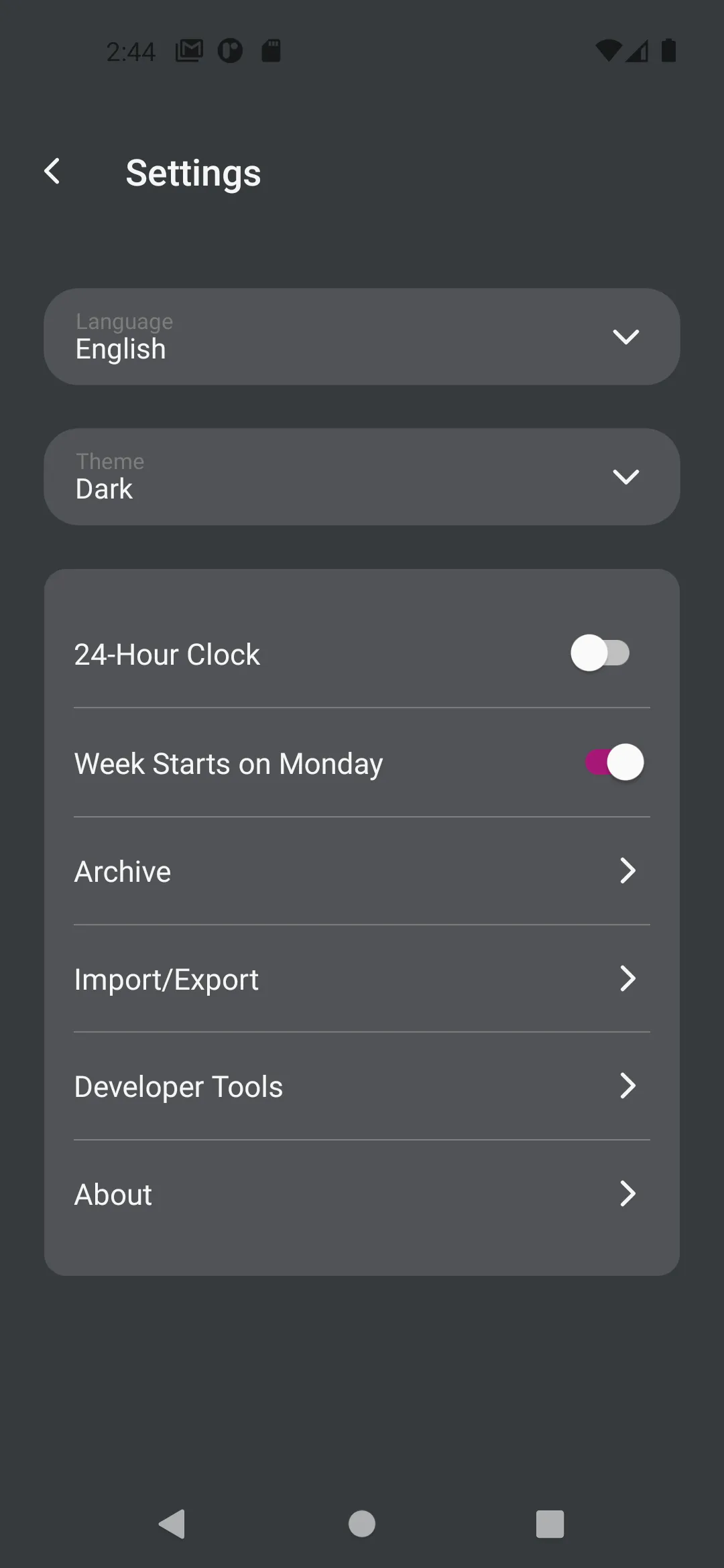
Tend offers various settings to personalize your habit tracking experience. This guide covers all available settings and how to use them effectively.
Accessing Settings
Tap the gear icon in the top right corner of the main screen to open Settings.
Language Settings
Changing the App Language
Tend supports multiple languages:
- English - Full interface in English
- Russian - Complete Russian localization
To change the language:
- Open Settings
- Tap on the Language dropdown
- Select your preferred language
- The app will immediately update to the new language
All text, including habit names you create, will remain in the language you entered them. Only the interface elements change.
Appearance Settings
Theme Selection
Choose how Tend looks with three theme options:
Light Mode
- Bright, clean interface
- Best for daytime use
- Easy to read in well-lit environments
Dark Mode
- Dark background with light text
- Reduces eye strain in low light
- Saves battery on OLED screens
System
- Automatically matches your device theme
- Changes with your device’s day/night settings
- Seamless integration with your device
To change the theme:
- Open Settings
- Tap on the Theme dropdown
- Select Light, Dark, or System
- The app updates immediately
Time and Date Settings
24-Hour Clock
Toggle between 12-hour and 24-hour time formats.
12-Hour Format
- Shows times as 1:00 PM, 9:30 AM, etc.
- Includes AM/PM indicators
- Common in the United States
24-Hour Format
- Shows times as 13:00, 09:30, etc.
- No AM/PM needed
- Standard in most countries
To change:
- Open Settings
- Toggle 24-Hour Clock on or off
- All times in the app update immediately
This affects:
- Notification times
- Time displays throughout the app
- Time pickers when setting notifications
Week Starts on Monday
Choose which day starts your week in calendar views.
Sunday Start
- Week runs Sunday through Saturday
- Common in the United States
- Traditional calendar layout
Monday Start
- Week runs Monday through Sunday
- ISO standard week format
- Common in Europe and many other countries
To change:
- Open Settings
- Toggle Week Starts on Monday on or off
- All calendars update immediately
This affects:
- Weekly calendar view on the main screen
- Calendar picker when creating habits
- Statistics calendar view
- Week-based habit scheduling
Data Management
Archive
Access your archived habits to review or restore them.
- Open Settings
- Tap Archive
- View all archived habits
- Tap a habit to restore it
See the Data Management guide for detailed information about archiving.
Import/Export
Backup and restore your habit data.
- Open Settings
- Tap Import/Export
- Choose Export or Import
See the Data Management guide for complete backup and restore instructions.
Advanced Settings
Developer Tools
Access debugging and diagnostic tools.
Available Tools:
- Log scheduled notifications
- View device dimensions
- Debug log viewer
- Clear debug log
When to Use:
- Troubleshooting notification issues
- Reporting bugs
- Understanding app behavior
- Technical support requests
To access:
- Open Settings
- Tap Developer Tools
- Use the available debugging options
Note: These tools are for advanced users and troubleshooting. Most users won’t need them.
About
View app information and resources.
Information Available:
- App version number
- Links to website
- Contact support
- License information
To access:
- Open Settings
- Tap About
Customization Tips
Optimizing for Your Workflow
For Morning Routines:
- Set theme to Light or System
- Enable 24-hour clock if preferred
- Set week start to match your work week
- Use English or your native language
For Evening Tracking:
- Consider Dark mode to reduce eye strain
- Set notifications for evening review
- Adjust time format to your preference
For International Users:
- Choose your language
- Set appropriate time format (24-hour common outside US)
- Adjust week start to match local calendar conventions
Notification Best Practices
While notification settings are configured per habit, these general tips help:
Timing:
- Set reminders when you can actually do the habit
- Avoid too many notifications at once
- Space them throughout the day
- Consider your daily routine
Frequency:
- One reminder per habit is often enough
- Multiple reminders for easily forgotten habits
- Morning reminders for daily habits
- Evening reminders for reflection habits
Managing Notification Overload:
- Start with fewer notifications
- Add more only if you forget habits
- Review and adjust weekly
- Remove notifications for established habits
Privacy and Permissions
Data Storage
All your data is stored locally on your device:
- Habit configurations
- Completion history
- Settings and preferences
- Notification schedules
No Cloud Storage:
- Data never leaves your device automatically
- You control all exports
- No account required
- Complete privacy
Required Permissions
Tend may request these permissions:
Notifications
- Required for habit reminders
- Can be disabled in device settings
- Habit tracking works without notifications
Storage
- Required for export/import
- Needed to save backup files
- Can be managed in device settings
Revoking Permissions
To change permissions:
- Open your device Settings
- Find Tend in app list
- Tap Permissions
- Enable or disable as needed
Note: Disabling storage permission prevents exports/imports. Disabling notifications stops reminders but doesn’t affect habit tracking.
Troubleshooting Settings
Settings Not Saving
If settings don’t persist:
- Ensure you have storage permission
- Restart the app
- Check available storage space
- Try changing one setting at a time
Theme Not Changing
If theme doesn’t update:
- Check if System theme is selected
- Verify device theme settings
- Force close and reopen the app
- Try selecting a specific theme (Light or Dark)
Language Not Updating
If language doesn’t change:
- Select the language again
- Restart the app
- Check if language is supported
- Verify device language settings
Calendar Not Showing Correct Week Start
If week start day is wrong:
- Toggle the setting off and on
- Restart the app
- Check all calendar views update
- Verify in habit creation calendar
Resetting to Defaults
There’s no “reset all settings” button. To restore defaults:
Language: Select English Theme: Select System 24-Hour Clock: Turn off (for 12-hour) Week Starts on Monday: Turn on (for Monday start)
Or simply reinstall the app (this will delete all data, so export first!).
Settings Across Devices
Settings are included in export files. When you import data on a new device:
- Language preference transfers
- Theme preference transfers
- Time format transfers
- Week start preference transfers
This ensures consistent experience across devices.
Frequently Asked Questions
Q: Can I set different themes for different times of day?
A: Use the System theme option, then configure your device to switch themes automatically.
Q: Will changing language translate my habit names?
A: No, only the interface changes. Your habit names remain as you entered them.
Q: Do I need to export settings separately?
A: No, settings are included in regular data exports.
Q: Can I customize colors beyond the theme?
A: Currently, only Light/Dark/System themes are available. Habit colors are customizable when creating habits.
Q: Why can’t I change the app icon?
A: Custom app icons aren’t currently supported, but may be added in future updates.
Q: How do I report a bug or request a feature?
A: Use the Contact Support link in Settings > About.
Customize Tend to work the way you do! Adjust these settings to create your perfect habit tracking environment.