Data Management
Your habit data is valuable. This guide explains how to protect your data, transfer it between devices, and manage your habit history.
Backup and Restore
Why Backup Your Data?
Regular backups ensure you never lose your habit tracking progress. Backups are essential for:
- Device changes - Moving to a new phone or tablet
- App reinstalls - Recovering data after reinstalling Tend
- Data protection - Safeguarding against accidental deletion
- Multiple devices - Syncing habits across devices
Accessing Import/Export
- Open Settings (tap the gear icon in the top right)
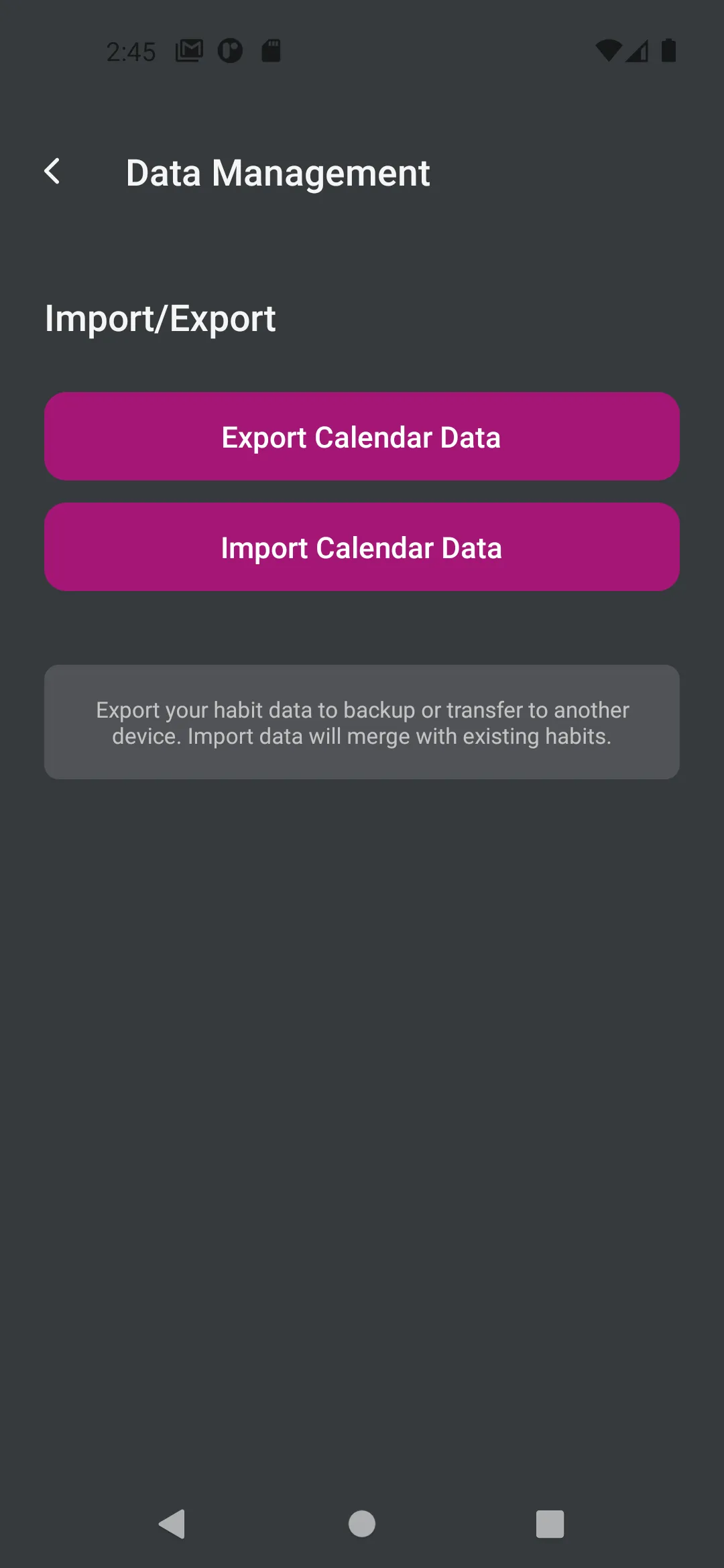
- Tap Import/Export
Exporting Your Data
How to Export
- In the Import/Export screen, tap Export Calendar Data
- Choose a location to save the backup file
- The app will create a file containing all your data
- You’ll see a success message when complete
What Gets Exported?
Your export file contains:
- All habit configurations (names, icons, colors, schedules)
- Complete completion history for all habits
- Notification settings for each habit
- App settings and preferences
- Archive status for habits
Export File Format
The export creates a JSON file that includes:
- Habits data
- Calendar marks (completion records)
- Notification schedules
- User settings
This file is portable and can be imported on any device running Tend.
Best Practices for Backups
Frequency
- Export weekly if you track habits daily
- Export before major changes (deleting habits, clearing data)
- Export before device changes or app updates
Storage
- Save to cloud storage (Google Drive, iCloud, Dropbox)
- Keep multiple backup versions
- Name files with dates (e.g., “tend-backup-2024-02-08.json”)
Security
- Backup files contain your personal habit data
- Store in secure locations
- Don’t share backup files publicly
Importing Data
How to Import
- In the Import/Export screen, tap Import Calendar Data
- Select your backup file
- The app will process the import
- You’ll see a summary of imported items
Import Behavior
When you import data:
- Habits are merged - New habits are added, existing ones are updated
- Completions are preserved - Your current progress is kept
- Duplicates are handled - The app intelligently merges duplicate habits
- Settings are updated - Imported settings override current ones
Import Success Message
After a successful import, you’ll see a message showing:
- Number of habits imported
- Number of calendar marks (completions) imported
- Number of notifications imported
- Number of settings imported
Example: “Imported 5 habits, 120 calendar marks, 8 notifications, and 4 settings”
Troubleshooting Imports
Import Failed
If import fails:
- Verify the file is a valid Tend backup
- Check the file isn’t corrupted
- Ensure you have storage space available
- Try exporting a new backup and importing that
Missing Data After Import
If some data is missing:
- Check if habits are archived (Settings > Archive)
- Verify the backup file was complete
- Look at the import summary for counts
Duplicate Habits
If you see duplicate habits:
- The import merged similar habits
- Check habit names and settings
- Archive or delete unwanted duplicates
Managing Archived Habits
Viewing Archived Habits
- Open Settings
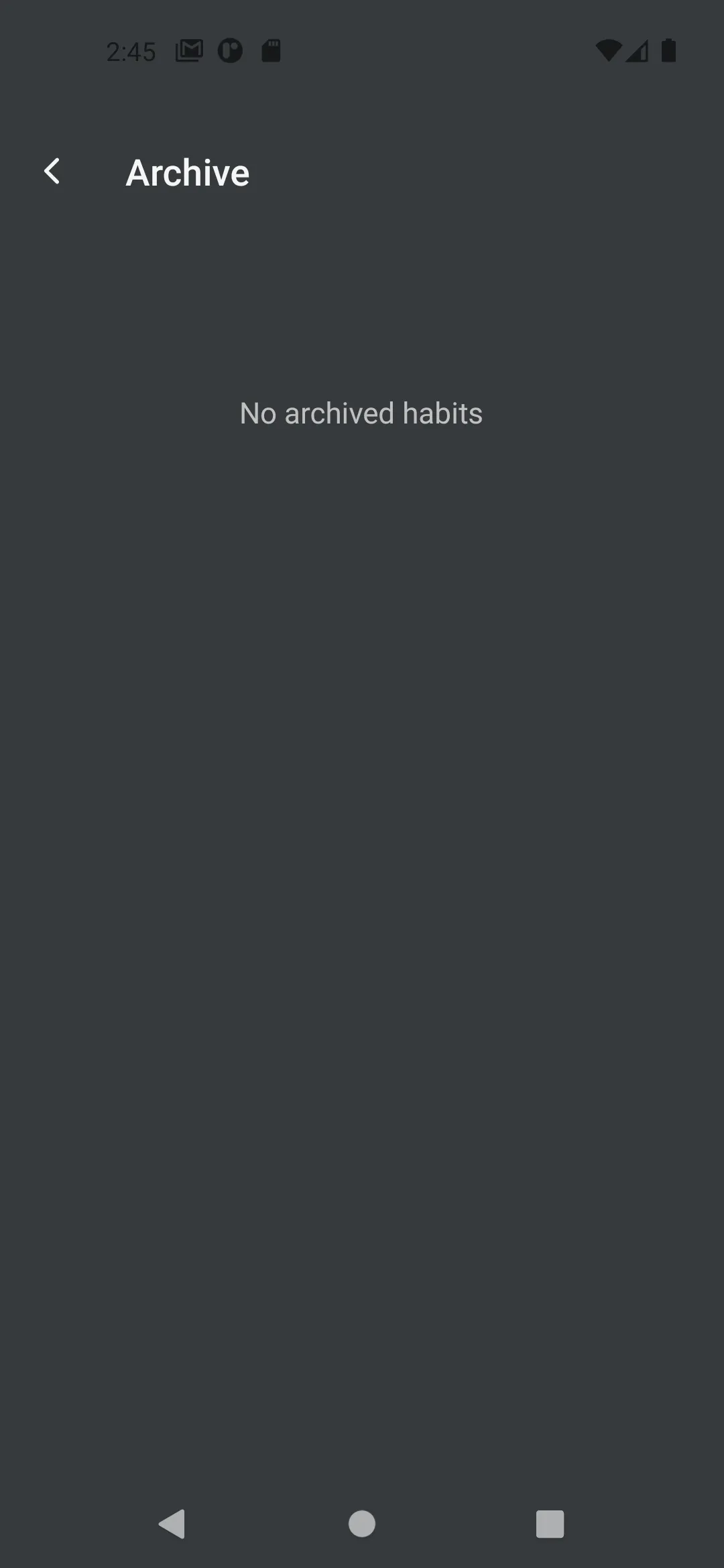
- Tap Archive
What Are Archived Habits?
Archived habits are habits you’re no longer actively tracking but want to keep for historical purposes. They:
- Don’t appear in your main habit list
- Retain all completion history
- Can be restored at any time
- Are included in exports
Archiving a Habit
To archive a habit:
- Long-press on the habit in your main list
- Select Archive Habit
- Confirm the action
The habit is moved to the archive and removed from your active list.
Restoring Archived Habits
To restore an archived habit:
- Go to Settings > Archive
- Find the habit you want to restore
- Tap on it
- Select Unarchive Habit
- Confirm the action
The habit returns to your active list with all its history intact.
When to Archive vs. Delete
Archive when:
- You’ve completed a time-limited goal
- Taking a break from a habit
- Seasonal habits (e.g., “Swim daily” in summer)
- Want to keep the history for reference
Delete when:
- The habit was created by mistake
- You’ll never need the data again
- You want to completely remove all traces
Clearing Habit Data
What Is Clear Data?
The “Clear Data” option removes all completion marks for a specific habit while keeping the habit configuration.
How to Clear Data
- Long-press on a habit
- Select Clear Data
- Confirm the action
When to Use Clear Data
Use this feature when:
- Starting a habit fresh after a long break
- Resetting progress for a new challenge
- Removing test completions
- Correcting tracking mistakes
What Happens
After clearing data:
- The habit remains in your list
- All completion marks are deleted
- Habit settings are unchanged
- Notifications remain configured
Transferring Data Between Devices
Moving to a New Device
-
On your old device:
- Export your data
- Save the file to cloud storage or email it to yourself
-
On your new device:
- Install Tend
- Open the app (it will be empty initially)
- Import your backup file
- All your habits and history will appear
Syncing Multiple Devices
Tend doesn’t have automatic cloud sync, but you can manually sync:
- Primary device: Export data regularly
- Secondary device: Import the latest export
- Repeat as needed to keep devices in sync
Important: Manual syncing can lead to conflicts if you track on both devices between syncs. Choose one primary device for tracking.
Data Privacy and Security
What Data Is Stored?
Tend stores locally on your device:
- Habit names and configurations
- Completion dates and times
- Notification schedules
- App settings and preferences
Data Privacy
- All data is stored locally on your device
- No data is sent to external servers
- Exports are under your control
- You decide where backups are stored
Deleting All Data
To completely remove all data:
- Delete all habits individually, or
- Uninstall the app (removes all local data)
Note: There is no “delete all data” button. This is intentional to prevent accidental data loss.
Best Practices
Regular Maintenance
Weekly:
- Review your active habits
- Archive completed or paused habits
- Export a backup
Monthly:
- Check archived habits
- Clean up old backups (keep recent ones)
- Review statistics to identify patterns
When Changing Devices:
- Export before removing the old device
- Verify import on new device
- Keep old device until confirmed
Organizing Your Data
- Use meaningful habit names - Makes backups easier to review
- Archive regularly - Keep active list focused
- Date your backups - Easy to identify the latest version
- Store backups securely - Cloud storage with encryption
- Test imports occasionally - Verify backups work
Avoiding Data Loss
Do:
- Export before major changes
- Keep multiple backup versions
- Store backups in cloud storage
- Verify exports completed successfully
Don’t:
- Rely on a single backup
- Delete habits without exporting first
- Store backups only on the device
- Ignore export errors
Troubleshooting
Can’t Find Exported File
Check these locations:
- Downloads folder
- Documents folder
- The location you selected during export
- Cloud storage sync folders
Export/Import Not Working
Try these steps:
- Restart the app
- Check storage permissions
- Ensure sufficient storage space
- Try a different save location
- Update to the latest app version
Lost Data After Update
If data is missing after an app update:
- Check if habits are archived
- Look for automatic backups
- Import your most recent manual backup
- Check if you’re viewing the correct date
Backup File Won’t Open
If you can’t import a backup:
- Verify it’s a Tend export file (.json)
- Check the file isn’t corrupted
- Try opening in a text editor to verify it contains data
- Use a different backup if available
Remember: Your habit data represents your commitment and progress. Regular backups ensure this valuable information is never lost!