Reordering Habits
Arrange your habits in the order that makes sense for your daily routine — put the most important ones first, group related habits together, or simply organize them the way you like.
Entering Reorder Mode
Reorder mode is a special state that shows drag handles and lets you rearrange habits freely.
How to Start
- Long-press on any habit in your list
- The habit options menu will appear
- Tap Reorder Habit
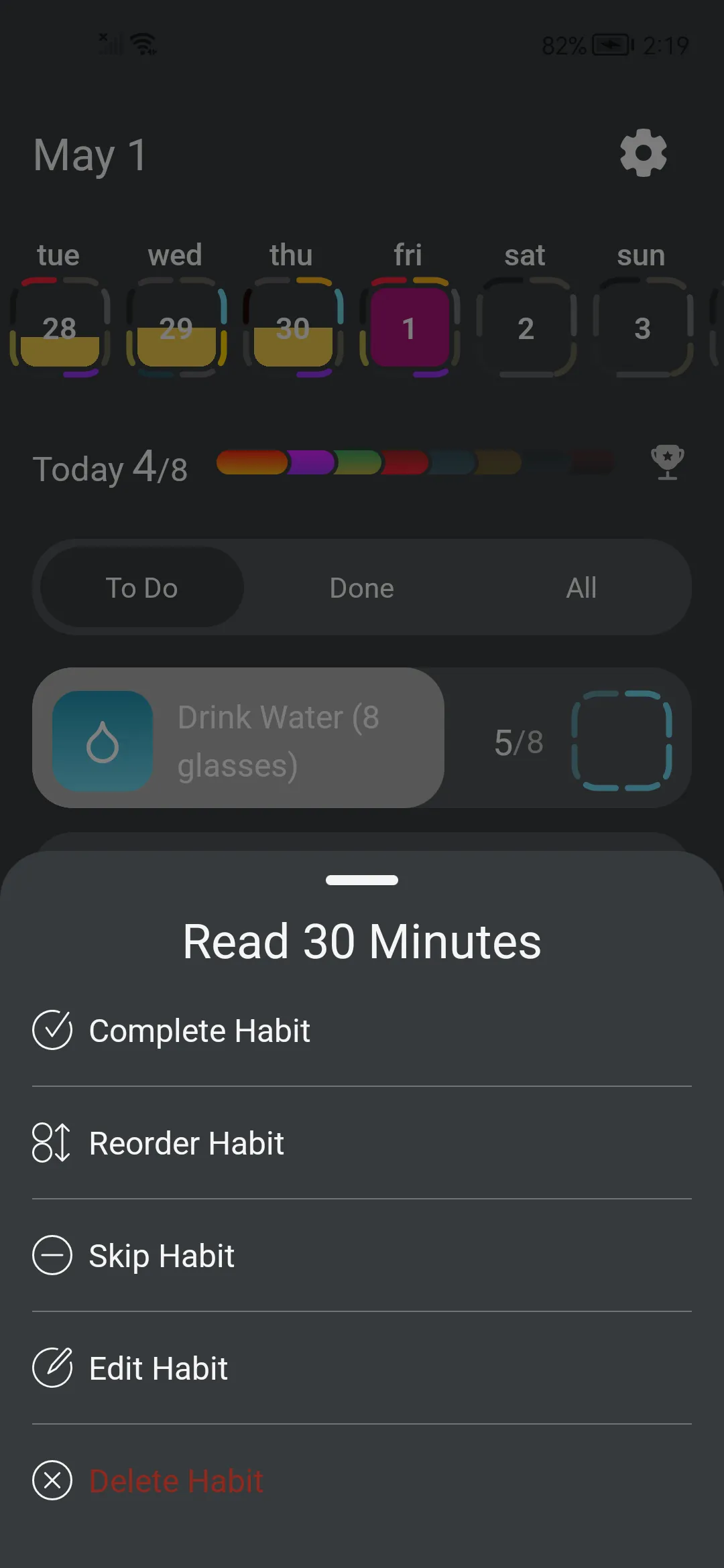
Reorder mode activates and the list switches to show all your habits (regardless of the active filter).
Reordering in Action
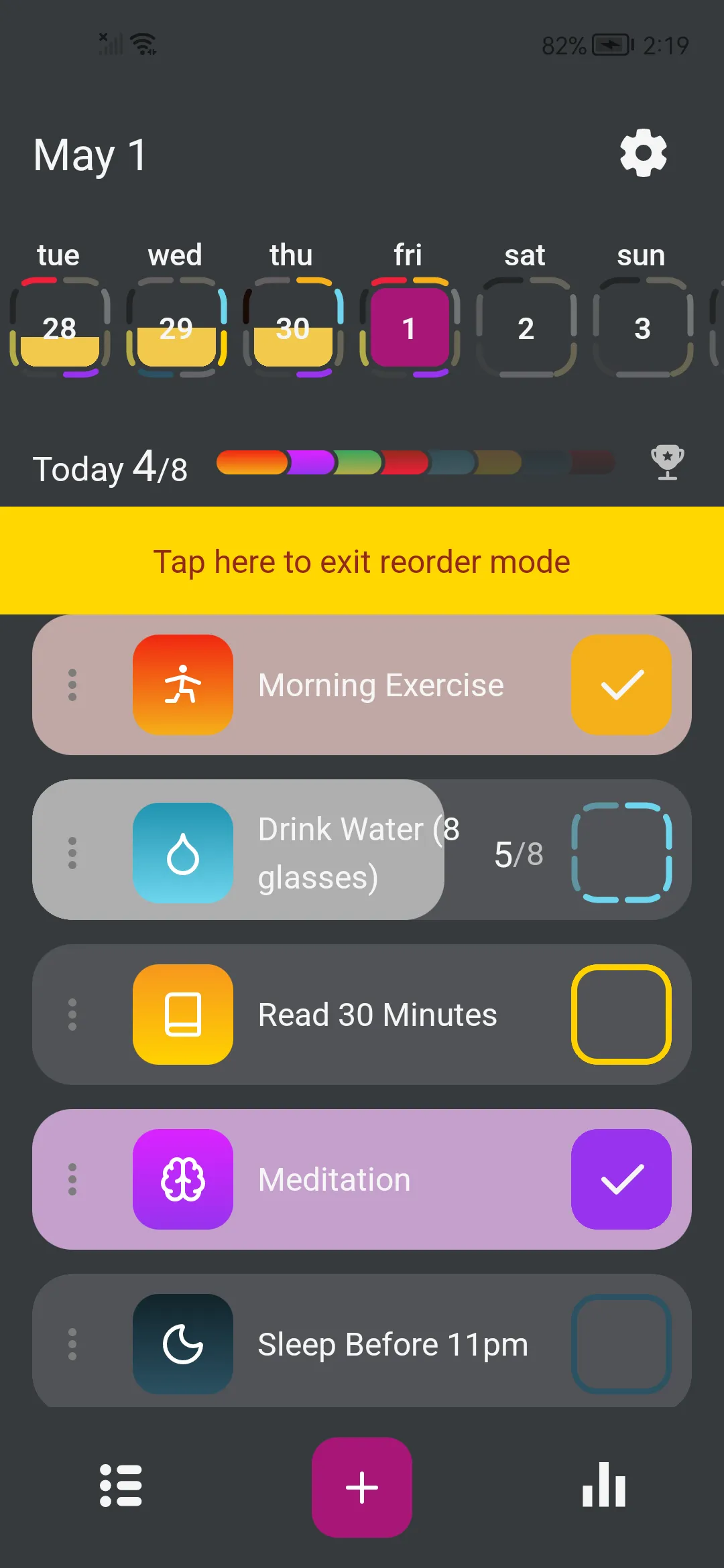
Once in reorder mode, the list looks different:
- Drag handles — three-dot icons appear on the left side of each habit
- All habits visible — the To Do / Done / All filter is hidden; every habit is shown
- Yellow exit banner — a tap target at the top of the screen to exit when you’re done
Dragging a Habit
- Tap and hold the drag handle (⋮⋮) on the left side of a habit
- Drag up or down to the new position
- Release to drop it in place
- Repeat for any other habits you want to move
The list updates instantly as you drag.
Saving and Exiting
Your reordered list is saved automatically when you exit reorder mode.
To exit, tap the yellow banner at the top of the screen.
Tips
Prioritize by Importance
Put habits you want to complete first at the top of the list — they’re the first thing you see when you open the app.
Group Related Habits
Keep related habits together: all morning habits in a cluster, all evening habits in another. This makes it easy to work through them in sequence.
Order by Time of Day
Arrange habits in the order you typically do them throughout the day:
- Morning habits at the top
- Afternoon habits in the middle
- Evening habits at the bottom
Reorder After Adding New Habits
When you create a new habit, it gets added to the end of the list. Use reorder mode to move it into the right position right away.