Creating and Managing Habits
Learn how to create effective habits, configure schedules, and manage your habit tracking workflow.
Creating a New Habit
Basic Steps
- Tap the + button on the main screen
- Fill in the habit details
- Configure the schedule
- Set reminders (optional)
- Tap Save
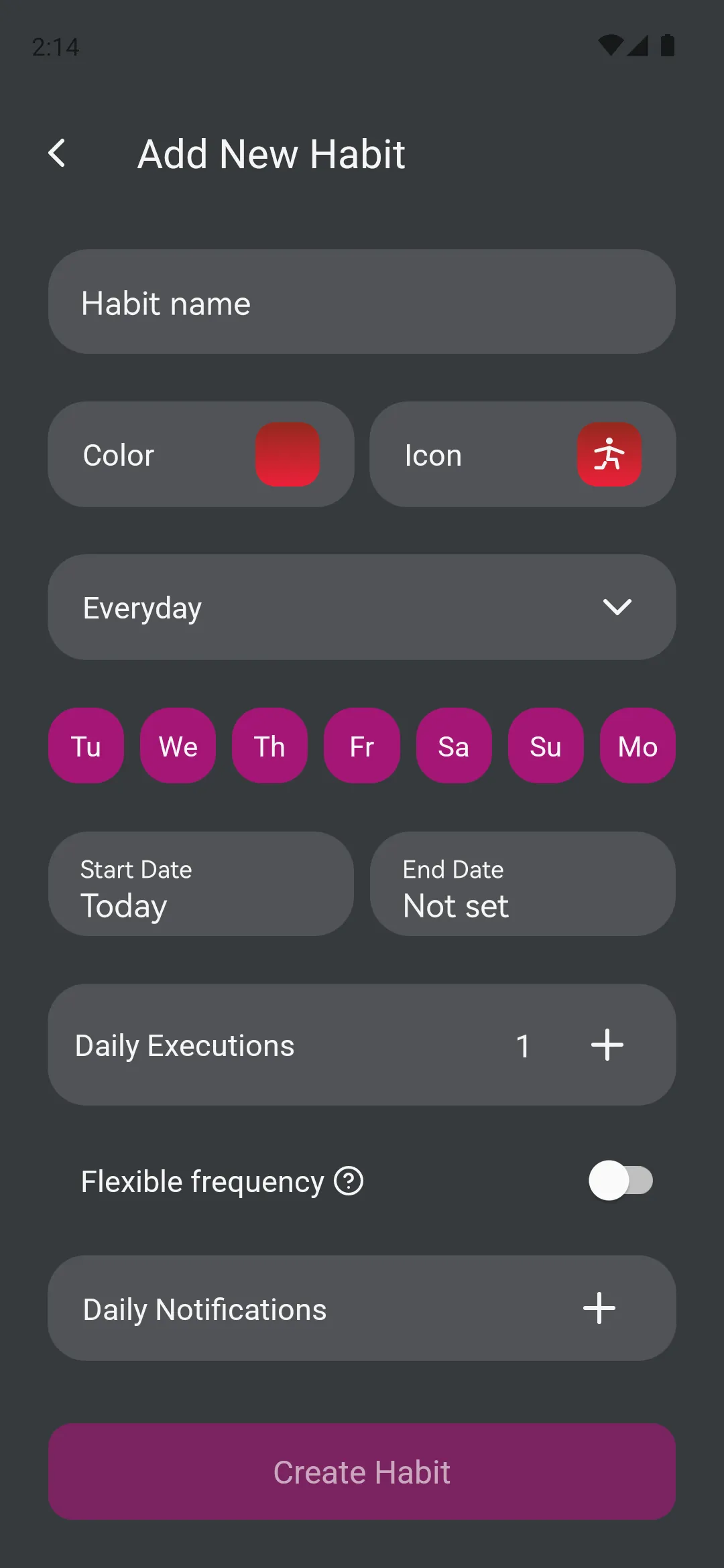
Habit Details
Name
Give your habit a clear, action-oriented name:
- Good: “Drink 8 glasses of water”, “Exercise for 30 minutes”, “Read 10 pages”
- Avoid: “Water”, “Gym”, “Book”
The name appears in your daily list, so make it specific and motivating.
Icon
Choose an icon that represents your habit:
- Browse through categories (Health, Productivity, Learning, etc.)
- Select an icon that’s visually distinct
- Icons help you quickly identify habits at a glance
Color
Pick a color for your habit:
- Use different colors for different categories
- Make frequently-used habits stand out
- Colors appear in the calendar and statistics views
Scheduling Your Habit
Recurrence Type
Choose how often the habit repeats:
Daily
- Habit appears every day
- Best for: Morning routines, health habits, daily practices
- Example: “Take vitamins”, “Meditate 10 minutes”
Weekly
- Select specific days of the week
- Best for: Gym schedules, weekly tasks, recurring meetings
- Example: “Gym (Mon/Wed/Fri)”, “Meal prep (Sunday)”
Monthly
- Choose a specific day of the month
- Best for: Monthly tasks, bills, reviews
- Example: “Pay rent (1st)”, “Monthly budget review (last day)”
Yearly
- Set a specific date each year
- Best for: Annual events, checkups, celebrations
- Example: “Annual physical (March 15)”, “Review goals (January 1)”
Biweekly
- Repeats every two weeks
- Best for: Alternating schedules, periodic tasks
- Example: “Deep clean house”, “Team retrospective”
Week Days (for Weekly habits)
Select which days the habit should appear:
- Tap days to toggle them on/off
- Choose consecutive days (Mon-Fri) or scattered days
- Days respect your week start preference (Settings)
Start and End Dates
Control when the habit is active:
Start Date
- When the habit begins appearing
- Useful for future goals or seasonal habits
- Leave blank to start immediately
End Date
- When the habit stops appearing
- Great for time-limited challenges
- Leave blank for ongoing habits
Examples:
- “Summer swimming” - Start: June 1, End: August 31
- “30-day challenge” - Start: Today, End: 30 days from now
- “Ongoing meditation” - Start: Today, End: (blank)
Advanced Features
Multiple Repetitions
Track habits you do multiple times per day:
- Set “Repetitions” to 2 or more
- Each completion fills one segment
- Perfect for “Drink water 8 times” or “Take medication 3 times”
How it works:
- Tap the habit once for each completion
- Progress bar shows how many you’ve done
- All repetitions must be completed to mark the day as done
Accumulating Habits
Enable catch-up mode for habits with missed days:
- Toggle “Accumulating Habit” on
- If you miss days, they accumulate
- Complete on current day to catch up
- Great for “Read 30 minutes daily” where you can make up time
Example:
- Habit: “Read 30 minutes” (daily, accumulating)
- Monday: Completed ✓
- Tuesday: Missed ✗
- Wednesday: Missed ✗
- Thursday: Shows 3 segments (today + 2 missed)
- Complete all 3 to catch up
Notifications
Set reminders to help you remember:
Adding Notifications:
- In the habit form, tap “Add Notification”
- Choose a time
- Add multiple notifications if needed
- Each notification can have a different time
Best Practices:
- Set reminders when you can actually do the habit
- Morning habits: Remind after waking up
- Evening habits: Remind before bed
- Multiple reminders: Space them out (e.g., 8 AM, 12 PM, 6 PM)
Managing Notifications:
- Tap a notification to edit the time
- Swipe or tap X to remove
- Notifications work even if the app is closed
Editing Habits
How to Edit
Long-press on any habit in your list to open the options menu.
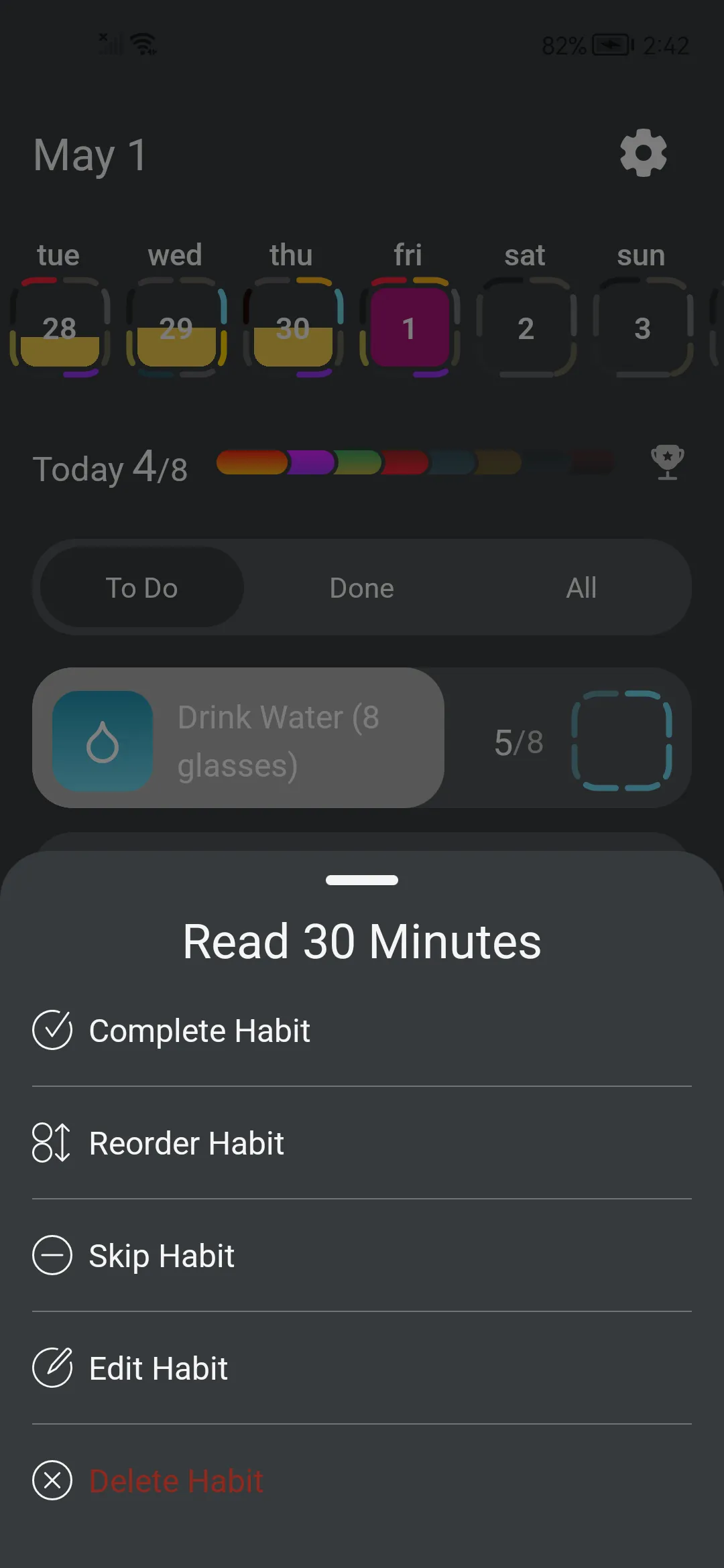
Select Edit Habit, make your changes, then tap Save.
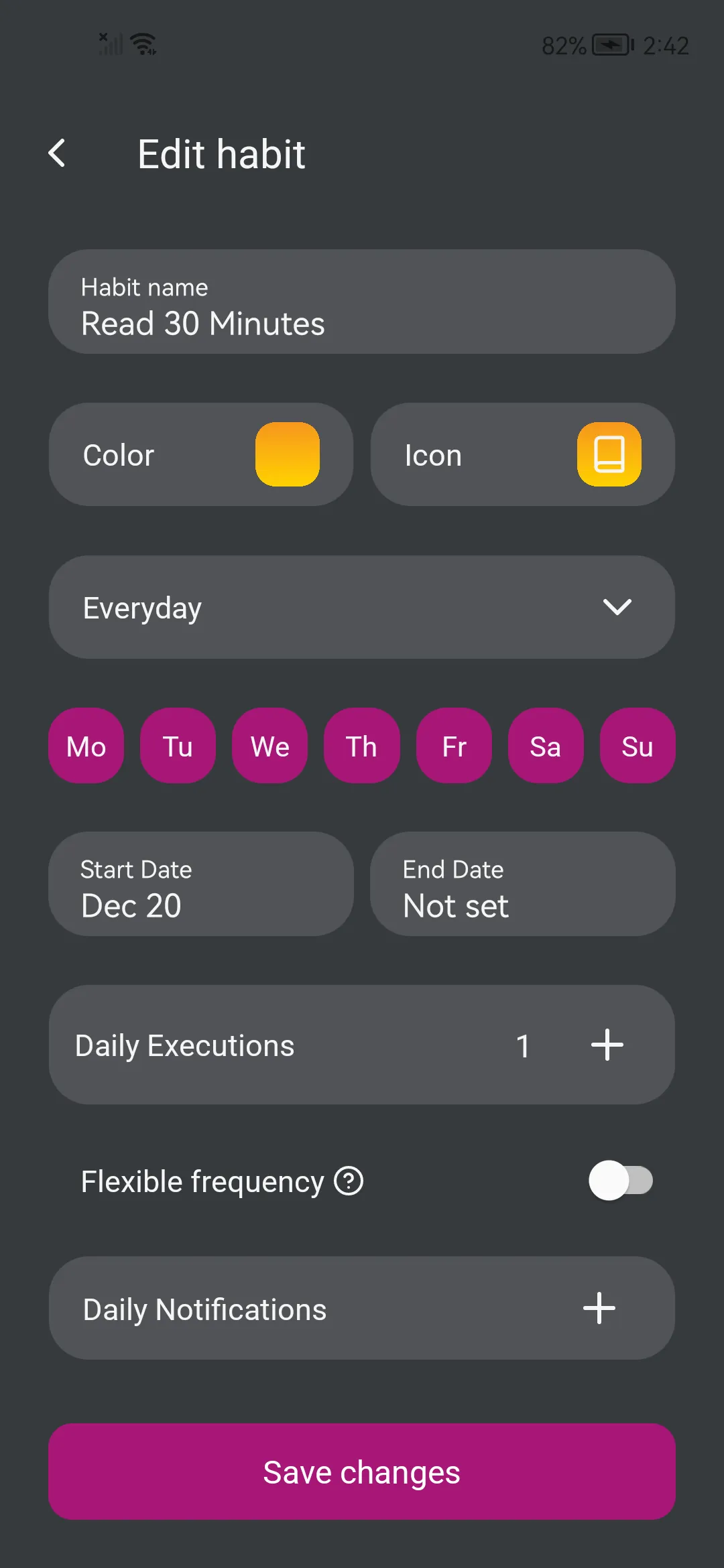
What You Can Change
Always Safe to Edit:
- Name
- Icon
- Color
- Notifications
Edit with Caution:
- Recurrence type (may affect which days it appears)
- Week days (changes when it’s active)
- Start/End dates (may hide/show the habit)
- Repetitions (changes completion requirements)
Note: Editing a habit doesn’t change your historical data. Past completions remain unchanged.
When to Edit vs. Create New
Edit when:
- Fixing a typo
- Changing the icon or color
- Adjusting notification times
- Tweaking the schedule slightly
Create new when:
- Completely changing the habit’s purpose
- Starting a new challenge or goal
- You want to preserve the old habit’s history separately
Managing Habits
Archive Habit
Remove from active list while keeping history:
- Long-press on the habit
- Select Archive Habit
- Confirm
When to archive:
- Completed a time-limited goal
- Taking a break from the habit
- Seasonal habits (archive in off-season)
- Want to declutter active list
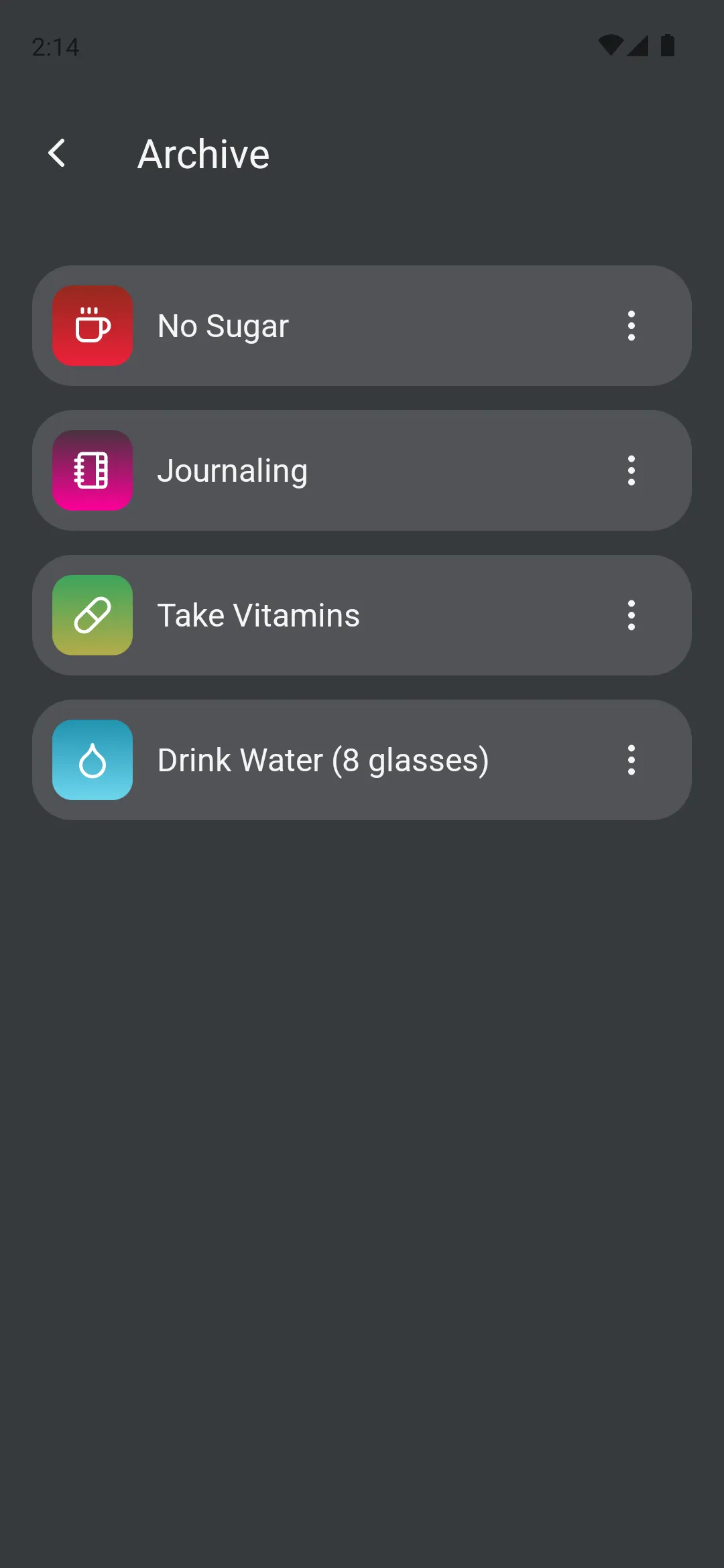
Restoring archived habits:
- Go to Settings > Archive
- Tap the archived habit
- Select Unarchive
Delete Habit
Permanently remove the habit and all its data:
- Long-press on the habit
- Select Delete Habit
- Confirm the deletion
Warning: This cannot be undone! All completion history will be lost.
When to delete:
- Habit was created by mistake
- You’ll never need the data again
- Cleaning up test habits
Alternative: Consider archiving instead to preserve history.
Clear Data
Remove all completion marks while keeping the habit:
- Long-press on the habit
- Select Clear Data
- Confirm
What happens:
- All completion marks are deleted
- Habit configuration remains unchanged
- Notifications stay configured
- Habit stays in your active list
When to use:
- Starting the habit fresh after a long break
- Resetting for a new challenge
- Removing test completions
- Correcting tracking mistakes
Habit Organization Tips
Color Coding
Use colors strategically:
- Health habits - Green or blue
- Work/Productivity - Orange or yellow
- Learning - Purple or pink
- Personal care - Light blue or teal
Icon Selection
Choose icons that are:
- Distinctive - Easy to tell apart at a glance
- Relevant - Clearly represent the habit
- Consistent - Use similar icons for related habits
Naming Conventions
Keep names:
- Action-oriented - Start with a verb
- Specific - Include quantity or duration
- Concise - Short enough to read quickly
- Motivating - Phrase positively
Examples:
- ✓ “Exercise 30 min”
- ✓ “Read 10 pages”
- ✓ “Drink 8 glasses water”
- ✗ “Gym”
- ✗ “Books”
- ✗ “Hydration”
Limiting Active Habits
Recommended:
- Beginners: 2-3 habits
- Intermediate: 5-7 habits
- Advanced: 10-12 habits
Why limit?
- Prevents overwhelm
- Increases success rate
- Maintains focus on what matters
- Easier to track consistently
Common Habit Patterns
Morning Routine
Create a sequence of morning habits:
- “Wake up at 6 AM” - Daily
- “Drink water” - Daily
- “Exercise 20 min” - Daily
- “Meditate 10 min” - Daily
- “Healthy breakfast” - Daily
Tip: Use sequential notifications (6:00, 6:15, 6:35, 6:55, 7:15)
Workout Schedule
Set up a weekly gym routine:
- “Upper body workout” - Weekly (Mon/Thu)
- “Lower body workout” - Weekly (Tue/Fri)
- “Cardio session” - Weekly (Wed/Sat)
- “Rest day stretch” - Weekly (Sun)
Tip: Use different colors for different workout types
Learning Goals
Track study and learning:
- “Spanish practice 30 min” - Daily
- “Read professional book 20 min” - Daily
- “Online course lesson” - Weekly (Tue/Thu)
- “Practice coding” - Daily
Tip: Use accumulating habits for flexible learning time
Health Tracking
Monitor health habits:
- “Take vitamins” - Daily, 3 repetitions
- “Drink water” - Daily, 8 repetitions
- “Walk 10,000 steps” - Daily
- “Sleep by 10 PM” - Daily
Tip: Set reminders throughout the day for multi-repetition habits
Troubleshooting
Habit Not Appearing on Expected Day
Check:
- Recurrence settings match your expectation
- Start date hasn’t been set to future
- End date hasn’t passed
- For weekly habits, correct days are selected
- Week start preference (Settings) is correct
Can’t Complete All Repetitions
Verify:
- You’re tapping the habit enough times
- The habit isn’t already fully completed
- You’re on the correct date
- The app hasn’t frozen (try restarting)
Notifications Not Firing
Ensure:
- Notification times are set in the habit
- Device notifications are enabled for Tend
- Device isn’t in Do Not Disturb mode
- Notification permission is granted
- Times are in the future (not past)
Habit Disappeared After Edit
Check:
- Settings > Archive (might have been archived accidentally)
- The date you’re viewing (schedule might have changed)
- Start/End dates weren’t modified to exclude today
Best Practices
Start Simple
Begin with basic daily habits before adding complex schedules.
Review Weekly
Every week, assess which habits are working and adjust accordingly.
Use Reminders Wisely
Don’t over-notify. One or two reminders per habit is usually enough.
Archive Regularly
Keep your active list focused by archiving completed or paused habits.
Backup Before Major Changes
Export your data before deleting or clearing multiple habits.
Be Patient
Habit formation takes time. Don’t give up after a few missed days.
Master habit creation and you’ll master your routines! Take time to set up your habits thoughtfully, and they’ll serve you well.